
How to Open an EX4 File in MetaTrader 4
How to Open an EX4 File in MetaTrader 4: Step-by-Step Guide
If you have downloaded an EX4 file and don’t know how to use it, you are not alone. EX4 files are commonly used for MetaTrader 4 (MT4) Expert Advisors, custom indicators, and scripts.
Unlike a normal document, an EX4 file isn’t designed to be opened by double-clicking it. It needs to be placed in the correct MetaTrader 4 folder before it can be loaded by the platform.
This guide explains how to open and install an EX4 file in MetaTrader 4, how to find the correct folder, and what to do if your EX4 doesn’t appear or work.
What Is an EX4 File?
An EX4 file is a compiled MQL4 program designed to run on MetaTrader 4.
It can be an:
- Expert Advisor (EA)
- Custom indicator
- Script
- Other compiled MQL4 application
The original source code is generally stored as an MQ4 file.
The development process normally looks like:
MQ4 Source Code → Compilation → EX4 File
Because EX4 is a compiled format, you normally don’t edit it directly in MetaEditor. If you need to modify the program, you generally need the original MQ4 source code.
How to Open an EX4 File in MT4
Installing an EX4 file is relatively straightforward.
Step 1: Open MetaTrader 4
Launch the MT4 desktop application.
Make sure you are using the MetaTrader 4 terminal where you want to install the program.
Step 2: Open the Data Folder
From the MT4 menu, select:
File → Open Data Folder
This opens the directory used by your MetaTrader installation.
Step 3: Open the MQL4 Folder
Inside the data folder, locate:
MQL4
You will see several subfolders.
The correct folder depends on what type of EX4 file you have.
Step 4: Choose the Correct Folder
For an Expert Advisor, open:
MQL4 → Experts
For a custom indicator, open:
MQL4 → Indicators
For a script, open:
MQL4 → Scripts
Place the EX4 file inside the appropriate folder.
For example:
MQL4
└── Experts
└── MyExpert.ex4
Or for an indicator:
MQL4
└── Indicators
└── MyIndicator.ex4
Step 5: Refresh MetaTrader 4
Return to MT4 and open the Navigator window.
You can normally access it through:
View → Navigator
You can also use the Navigator shortcut if enabled on your platform.
Right-click the appropriate category and select Refresh.
Alternatively, restarting MT4 can cause the platform to reload the files.
How to Open an EX4 Expert Advisor
If your EX4 is an Expert Advisor, look under:
Navigator → Expert Advisors
Find the EA you installed.
You can then drag the EA onto the desired chart.
MT4 will display the EA’s settings window before attaching it.
Depending on the EA, you may see options for:
- Inputs
- Trading settings
- Risk parameters
- Lot size
- Stop-loss
- Take-profit
- Other configuration options
Review the settings carefully before running an automated trading program.
Enable Automated Trading if Required
Some Expert Advisors require automated trading to be enabled in MT4.
The platform provides controls for allowing Expert Advisors to trade automatically.
However, don’t enable permissions blindly.
Only allow automated trading for software you trust and understand.
If an EA requests access to external DLLs, investigate why the DLL is required before enabling it.
How to Open an EX4 Indicator
If the EX4 is a custom indicator, place it inside:
MQL4 → Indicators
After refreshing the Navigator, find the indicator under:
Navigator → Indicators
Drag it onto the desired chart.
The indicator should then load and display its available settings.
Some indicators may require additional files to function correctly.
How to Open an EX4 Script
Scripts normally belong in:
MQL4 → Scripts
After installation, refresh the Navigator and look under the Scripts section.
Depending on what the script was designed to do, it may execute an action once rather than remain active on the chart.
EX4 File Doesn’t Appear in MT4
If you’ve copied the EX4 file but cannot find it in the Navigator, check the following.
1. Check the Folder
Make sure you placed the file in the correct directory.
An EA placed in the Indicators folder, for example, may not appear under Expert Advisors.
2. Refresh the Navigator
Right-click the relevant section and select Refresh.
3. Restart MT4
Close and reopen MetaTrader 4.
4. Check the File Extension
Make sure the file really ends with:
.ex4
Be careful with files such as:
MyEA.ex4.ex4
This can happen when operating systems hide known file extensions.
5. Check the MT4 Journal and Experts Tabs
If the program appears but doesn’t work, examine the platform’s log messages.
They may provide clues about missing files, permissions, initialization problems, or other errors.
Why Does My EX4 Need a DLL?
Some MQL4 programs use external DLL libraries.
A DLL can provide functionality outside the normal MQL4 environment.
For example:
EX4 → External DLL → Additional Functionality
A program may depend on a DLL for:
- External calculations
- Data processing
- Licensing
- Authentication
- Communication
- Other specialized functions
If an EX4 requires a DLL and the DLL is missing, the program may not function correctly.
Be Careful With DLL Permissions
If an EA asks you to enable DLL imports, understand what the program is requesting before allowing it.
Only use DLL-dependent trading software from a source you trust.
Never enable external-library permissions simply because an unknown program tells you that they are required.
Can You Open an EX4 File Without MetaTrader 4?
An EX4 is designed to operate within the MetaTrader 4 environment.
Opening it with a normal text editor will not display the original MQL4 source code.
You may see unreadable characters or binary data instead.
If your objective is to edit the program, simply opening the EX4 isn’t enough.
You generally need the original MQ4 source code.
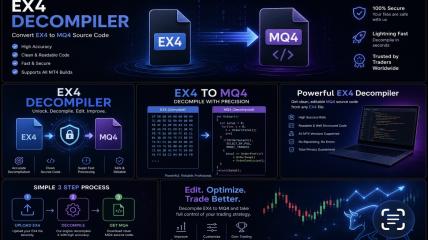
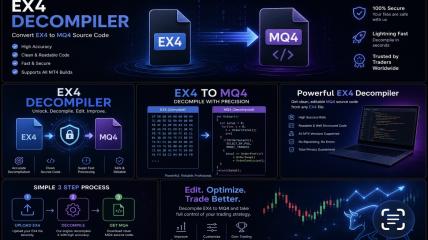
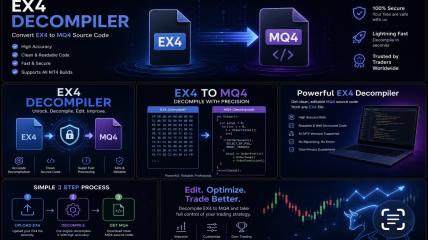
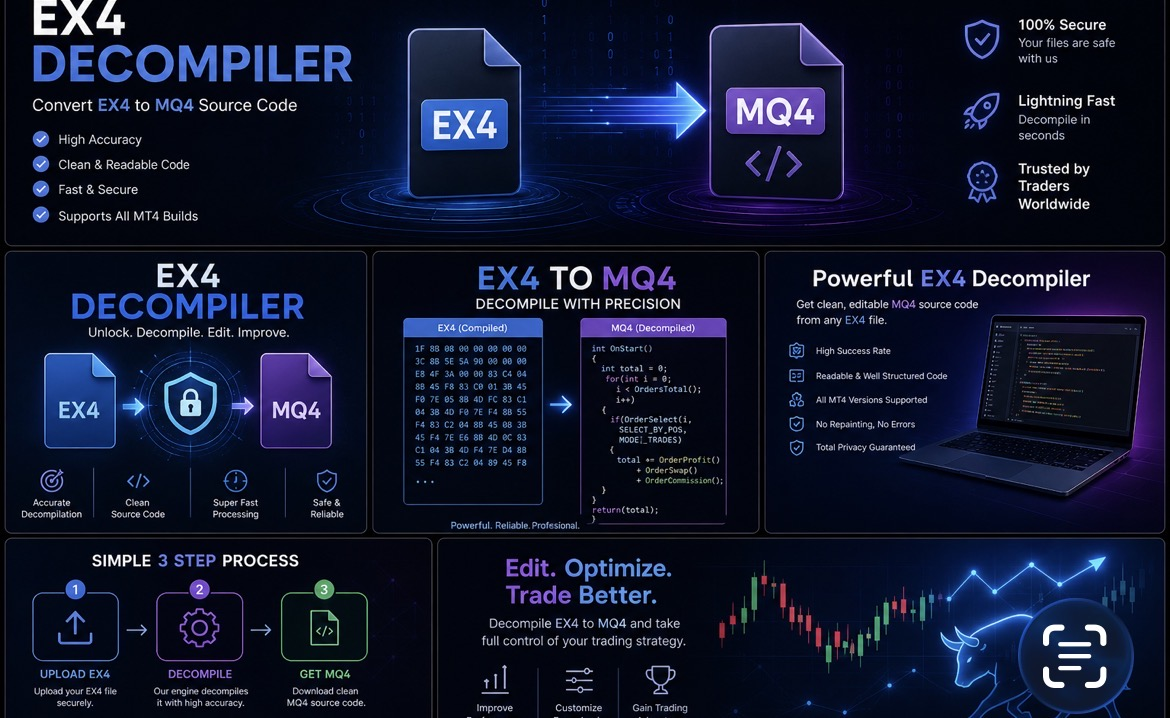
Can You Convert EX4 Back to MQ4?
This is a different question from simply opening an EX4.
If you have an EX4 but have lost the original MQ4 source, you may encounter the term:
EX4 to MQ4 decompiler
Source-code recovery attempts to reconstruct usable MQL4 code from a compiled EX4.
However, this isn’t guaranteed to reproduce the original source exactly.
The result can depend on factors including:
- EX4 build
- Compilation history
- Program complexity
- Protection
- Obfuscation
- External DLLs
- Missing dependencies
- File condition
For software you own or are authorized to analyze, a technical assessment can determine whether source recovery or redevelopment is realistic.
EX4 Files Used for Copy Trading
Some MT4 copy-trading systems are distributed as EX4 files.
For example, a copy-trading setup could contain:
Master EA → Communication System → Receiver EA
The system may also depend on DLLs, additional EX4 libraries, files, or external services.
If a copy-trading EA stops working, don’t assume that the EX4 itself is necessarily broken.
Check whether the required supporting components are still installed and available.
How to Keep Your EX4 Files Organized
If you regularly use MT4 programs, keep a backup of the original files.
For each EA or indicator, consider maintaining:
- EX4 file
- MQ4 source, if available
- MQH include files
- DLL dependencies
- Preset files
- Documentation
- Installation instructions
Keeping the complete project together can make future troubleshooting much easier.
Frequently Asked Questions
Can I double-click an EX4 file to open it?
Usually, no. EX4 files are designed to be loaded by MetaTrader 4 rather than opened like ordinary documents.
Where do I put an EX4 Expert Advisor?
Place the EA inside the MT4 data folder under:
MQL4 → Experts
Where do I put an EX4 indicator?
Place it under:
MQL4 → Indicators
Why isn’t my EX4 showing in MT4?
Check the file’s location, extension, program type, Navigator refresh, and MT4 logs.
Can I edit an EX4?
EX4 is a compiled format. For normal editing, you need the original MQ4 source code.
Can I turn an EX4 into MQ4 by renaming it?
No. Changing .ex4 to .mq4 does not recover the source code.
Why does my EX4 require a DLL?
Some MQL4 applications use external libraries for additional functionality. If the DLL is missing or unavailable, the EX4 may not operate correctly.
Final Thoughts
Installing an EX4 file in MetaTrader 4 is usually simple once you know where the file belongs.
The basic process is:
Open MT4 → File → Open Data Folder → MQL4 → Select the correct folder → Copy the EX4 → Refresh Navigator
Remember that an EX4 is a compiled MT4 program, not the original editable source code.
If you have the MQ4 source, keep it backed up. If you only have an EX4 and need to modify software you own or are authorized to work with, source-code recovery may be an option, but its feasibility depends on the individual file and any protection or external dependencies it contains.